
Partial Opt-Out Strategy page templates
What is the partial opt-out strategy?
When you are building an email list, it becomes increasingly important to segment your audience and make sure you are sending relevant emails to your subscribers in order to preserve a positive user experience.
It is also extremely important if you are doing affiliate marketing and are doing a specific promotion.
I am sharing a couple of templates I have created for myself which you can customize.
I have also recorded an extensive tech tutorial on how to implement it which is available on my YouTube channel.
Browse through the chapters for the parts you are interested in.
I will link the exact chapters under each template where I explain the use-case and how to set it up.
I have included inspiration from other marketers who use this strategy and what they have.
And further, I have included a checklist for you on how to set up a partial opt-out funnel.
A to Z Email Marketing tutorial
This is not a short tutorial!
However, you can find the chapters on the bottom + side of this tutorial so you can watch the stuff that is interesting to you.
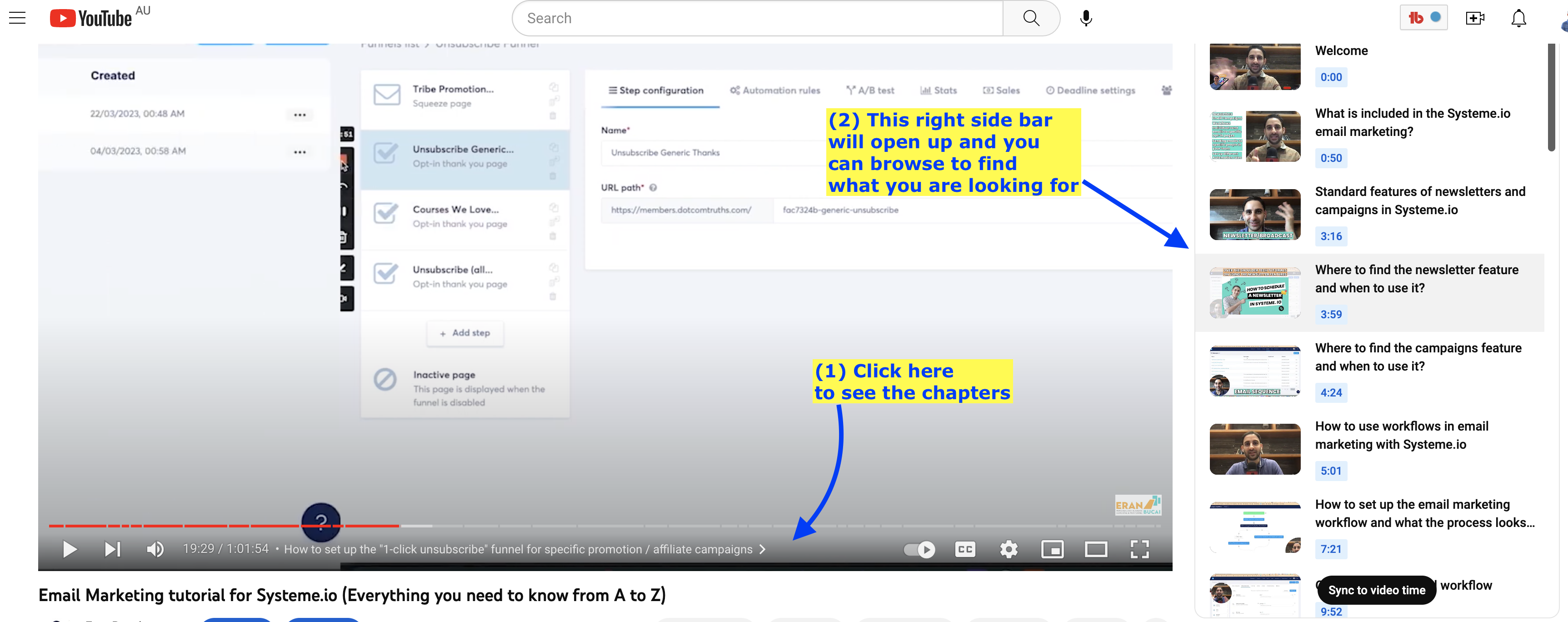
With that out of way, here is the tutorial:
Unsubscribe from all automated campaigns
Once I started adding a bunch of email sequences, it resulted in some people subscribing to a bunch of lead magnets resulting in way too many emails being sent to them.
So I add a line at the end of each email campaign that says, "PPS - do you feel like you're getting way too many emails from me? Stay subscribed to my general newsletter but remove yourself from any current automated campaigns you are receiving by clicking this link."
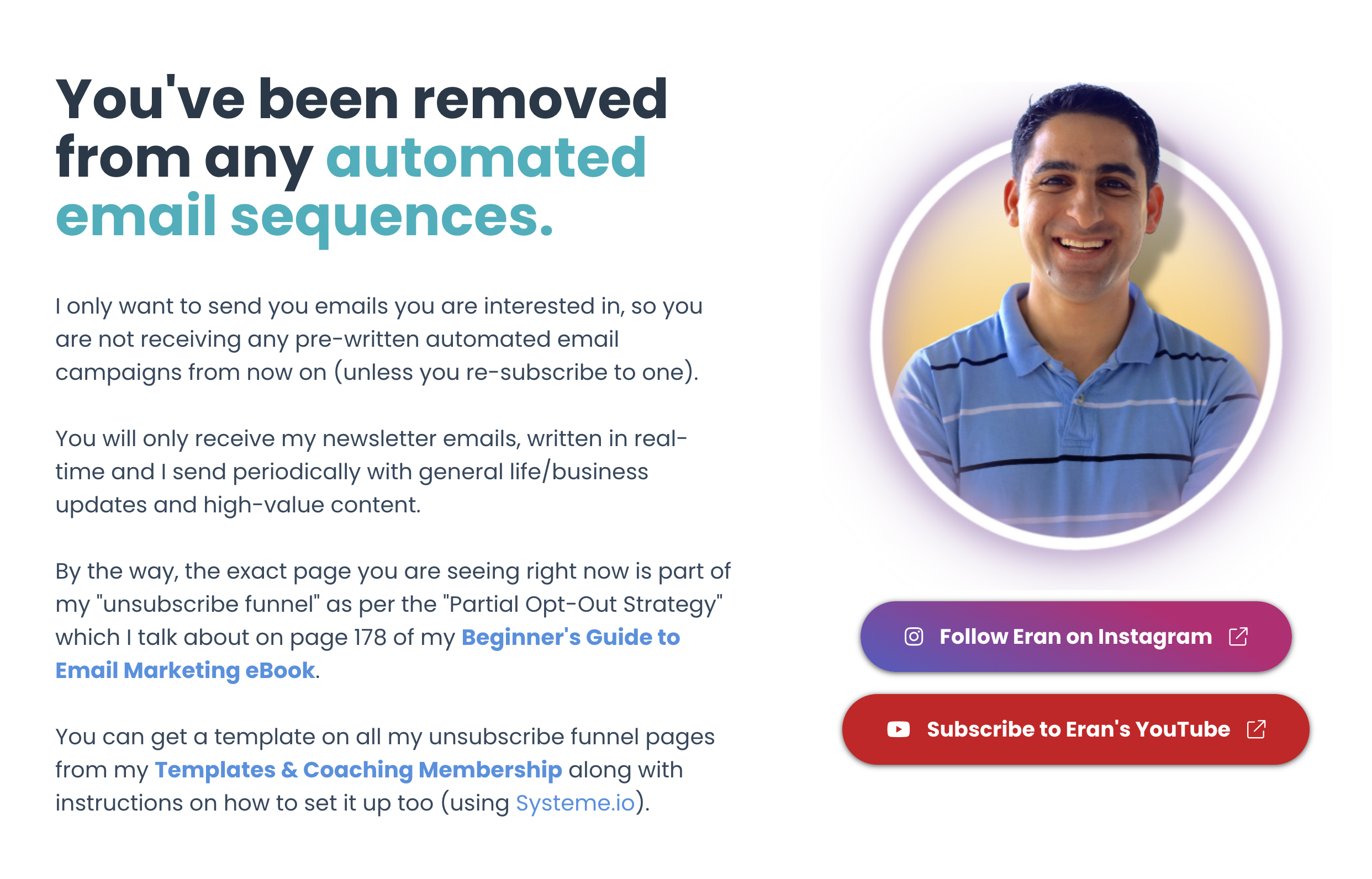
That "clicking this link" is hyperlink to a page which is my unsubscribe page which actually drives traffic to my email marketing eBook funnel as well as inviting them to join my Templates & Coaching Membership and follow me on social media.
It really is just another funnel.
Here is a picture of what it looks like - and when you click on the image, it will automatically add that section to your Systeme account as a template you can customized.
Unsubscribe from an affiliate campaign
When you are doing an affiliate promotion, there is sometimes a runway of a week or two where you might email half a dozen times.
You don't want to email people who aren't interested.
So you want to set up a partial opt-out campaign.
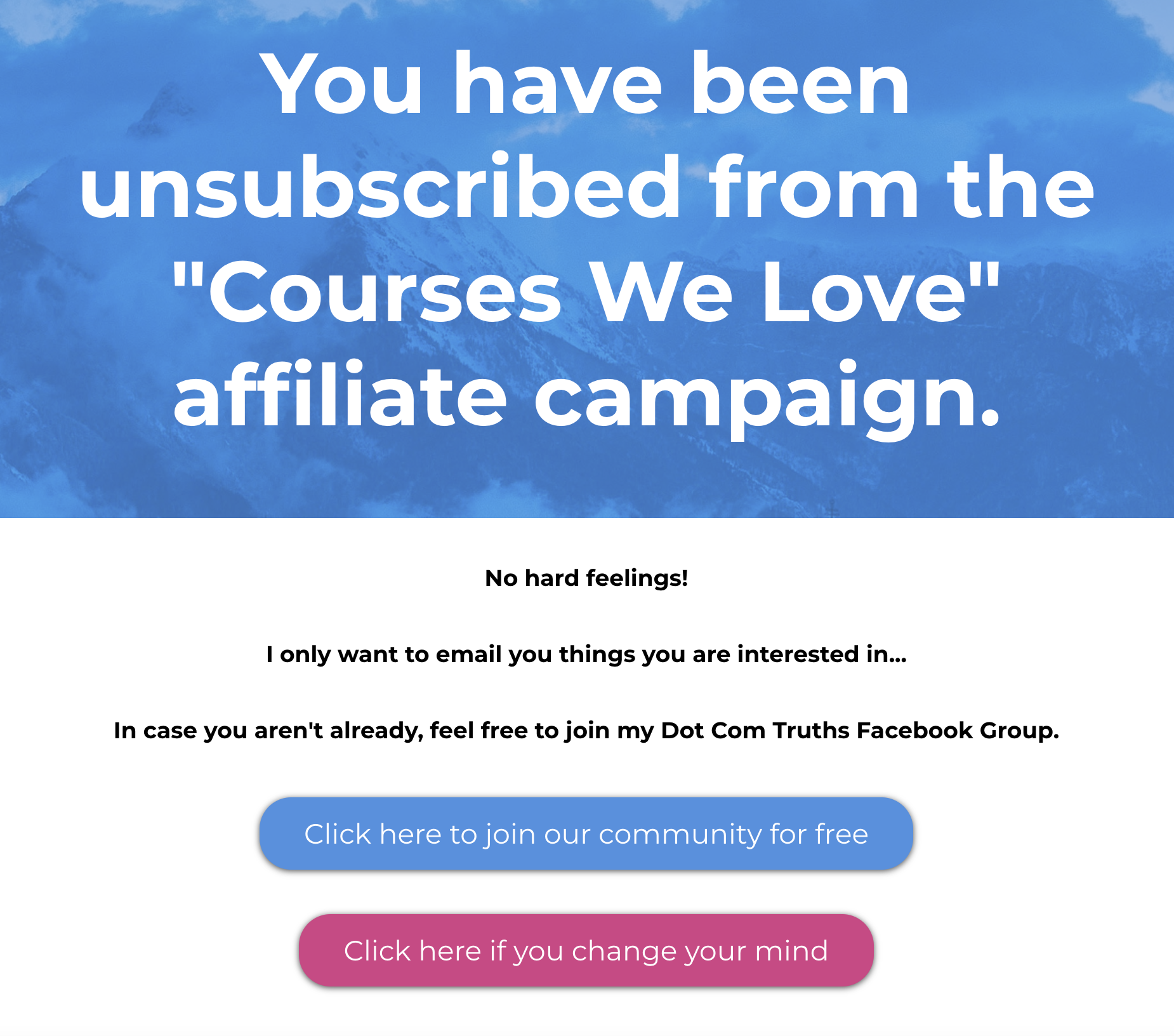
To help with that, I create a generic unsubscribe page which is shown below in a picture for a recent affiliate campaign I did.
When you click on that image, it will automatically import the section to your Systeme "my blocks".
Amy Porterfield Partial Opt-out (inspiration)
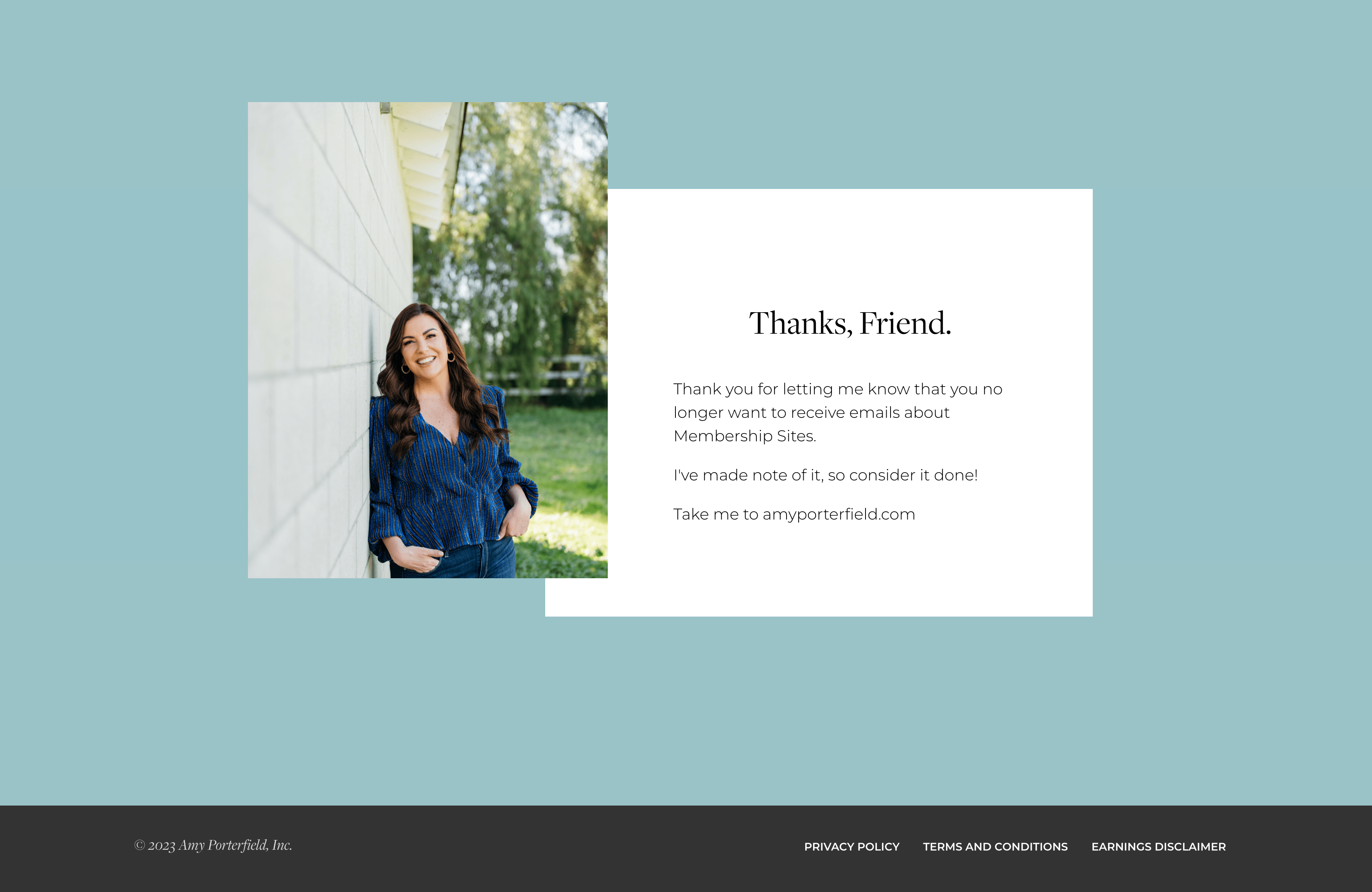
Here is what Amy write in her emails:
"If you no longer want to receive emails about membership sites, just click here. You won't be taken off of my list, but you will NOT receive emails related to this ;-)"
Andre Chaperon Partial Opt-out (inspiration)
You may have never heard of Andre Chaperon.
He is considered one of the early teachers of email marketing and the creator of a course called "Autoresponder Madness" which is a fantastic course on email marketing.
Following his course and email marketing content is where I learned a ton of stuff.
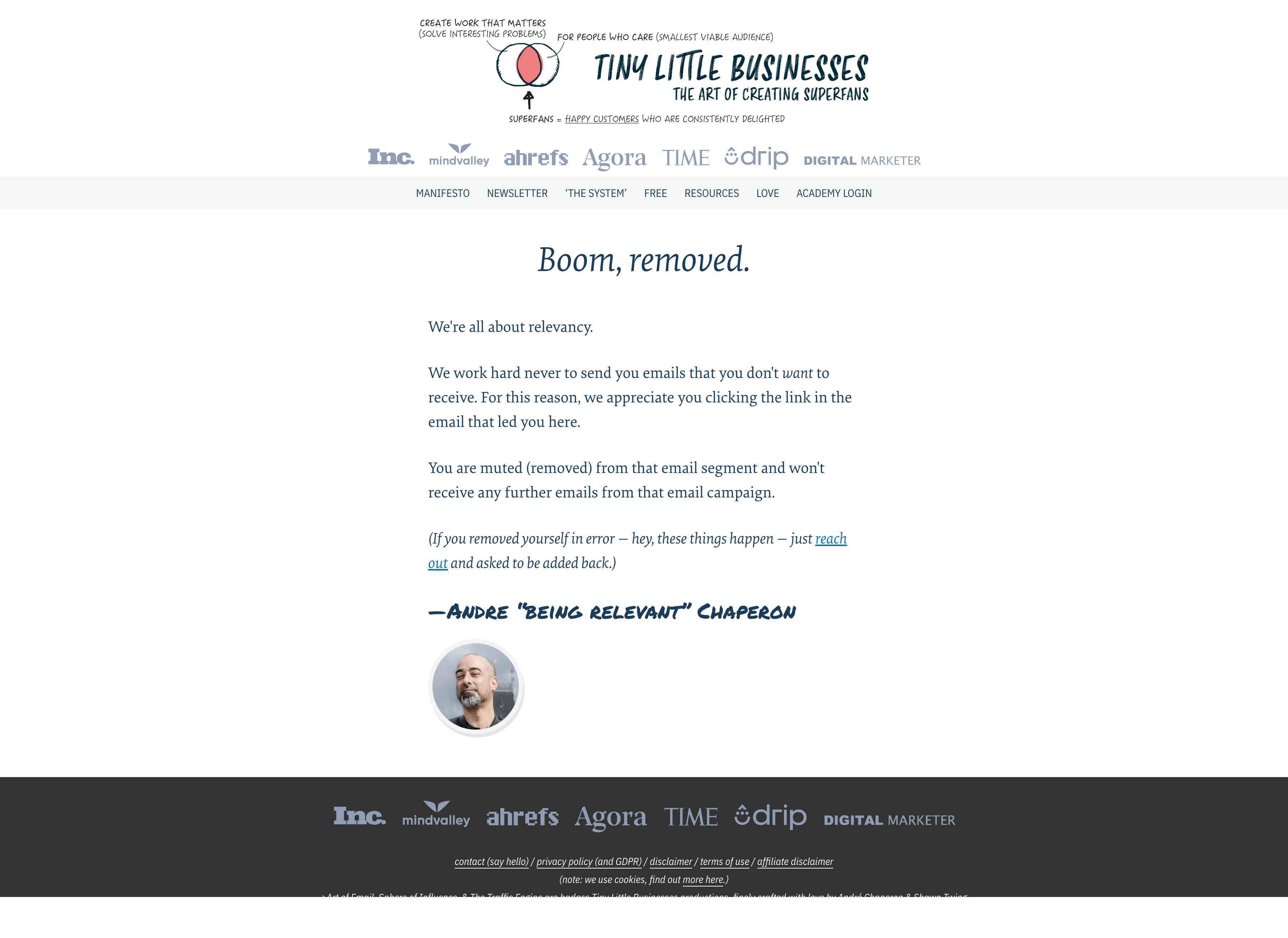
Here is the text (italicized) that Andre used on his opt-out confirmation page (and image below):
Boom, removed.
We're all about relevancy.
We work hard never to send you emails that you don't want to receive. For this reason, we appreciate you clicking the link in the email that led you here.
You are muted (removed) from that email segment and won't receive any further emails from that email campaign.
(If you removed yourself in error — hey, these things happen — just reach out and asked to be added back.)
—Andre “being relevant” Chaperon
Partial Opt-Out Implementation Checklist
Create a tag "Opt-out [name of campaign or promotion]". You can also use the word "Stop" or "Unsubscribe". Your preference.
Create a new Unsubscribe Funnel and add a page that is a "thank you opt-in page" and make sure the URL slug is really impossible to guess with lots of characters.
Import one of the above templates into that page and customize it
Go to "automation rules" and add "page visited" automation which adds the relevant tag you created above.
Optional: If you want to Unsubscribe someone from an automated campaign, go to Workflows and create a workflow starting with "tag added", then choose action of "unsubscribe from XYZ email campaign".
Optional: If this is not an automated campaign but a newsletter promotion, just make sure you are excluding that tag before sending your next newsletter.
It's a lot - I know :-)
Watch my tutorial above and follow the steps.
You can always check out my tech support membership and get 1-on-1 zoom support with my virtual assistant team.
Eran Bucai

Hey, I'm Eran
I'm the CEO & Founder of Eran Templates (duh), since these are my templates 😉
I've worked for years to create digital assets in my business from email content, Canva slides and posts, website pages, and more.
Now is the time that I share all these creations with as many people as possible to give them a shortcut to getting things done with less time and less effort (without a hefty price tag).
This page was created for paid members only at this stage.
Please do not share it.
You are always welcome to join the affiliate program and help spread the word.
Visit: eran.link/jv